Open ChatGPT, Claude, Copilot or Gemini out of the box and ask it to write something. You already know what comes back. Polished. Competent. Completely forgettable. That flat, everyone-sounds-the-same voice that reads like a press release nobody asked for.
Here is the fix. Fifteen minutes, once, per tool. You answer nine questions about your business and how you actually talk. The AI bakes that in. Every chat from then on starts with your voice already in the room.
No brand guide. No homework. You just need to know your own business and be honest about how you sound.
This is the hub. It holds the worksheet, the nine questions and the one prompt that does the work. Once you have your answers ready, jump to the walkthrough for the tool you use most. The answers are the same on every platform, so you fill them in once and they carry straight across.
Ada, my AI assistant, shaped the structure and the prompts for this guide. Human-led. AI-leveraged. The same approach you are about to put to work yourself.
Why voice is the one thing worth setting up
Anyone can now produce endless, competent content. Voice is what is left when everyone has the same tools. It is the one thing a competitor cannot copy.
Three reasons it earns the fifteen minutes:
- Recognition builds trust. When your writing sounds consistent across every post, email and reply, people recognise you before they see your name. Familiarity is the quiet groundwork of trust. That trust turns a follower into a client.
- Generic is invisible. Flat AI copy blends into the scroll. A specific voice, your turns of phrase, your dry humour, your no-fluff way of getting to the point, is what makes someone stop and read.
- It saves you time, twice. Set your voice once and every draft starts closer to done, so you rewrite less. And you stop re-explaining yourself to the AI at the top of every chat.
Before you type anything: a word on privacy
Fair question before you hand anything over. What are you actually sharing? The short answer is how you sound, not your secrets.
- What you share is your voice. Tone, audience, turns of phrase. Not passwords, client files or financials.
- It lives in your account. Your instructions sit in your own settings. Edit them, replace them or delete them any time.
- Check your data controls. In settings, review the data and privacy options and pick what suits you. Free and paid plans can differ.
- Rule of thumb. Never paste anything you would not be comfortable having stored. No client-confidential material, no logins, no secrets.
Setting your voice does not need any of that sensitive detail. If a question ever nudges you toward something private, answer it in general terms. The voice still comes through.
The worksheet: nine questions, your answers
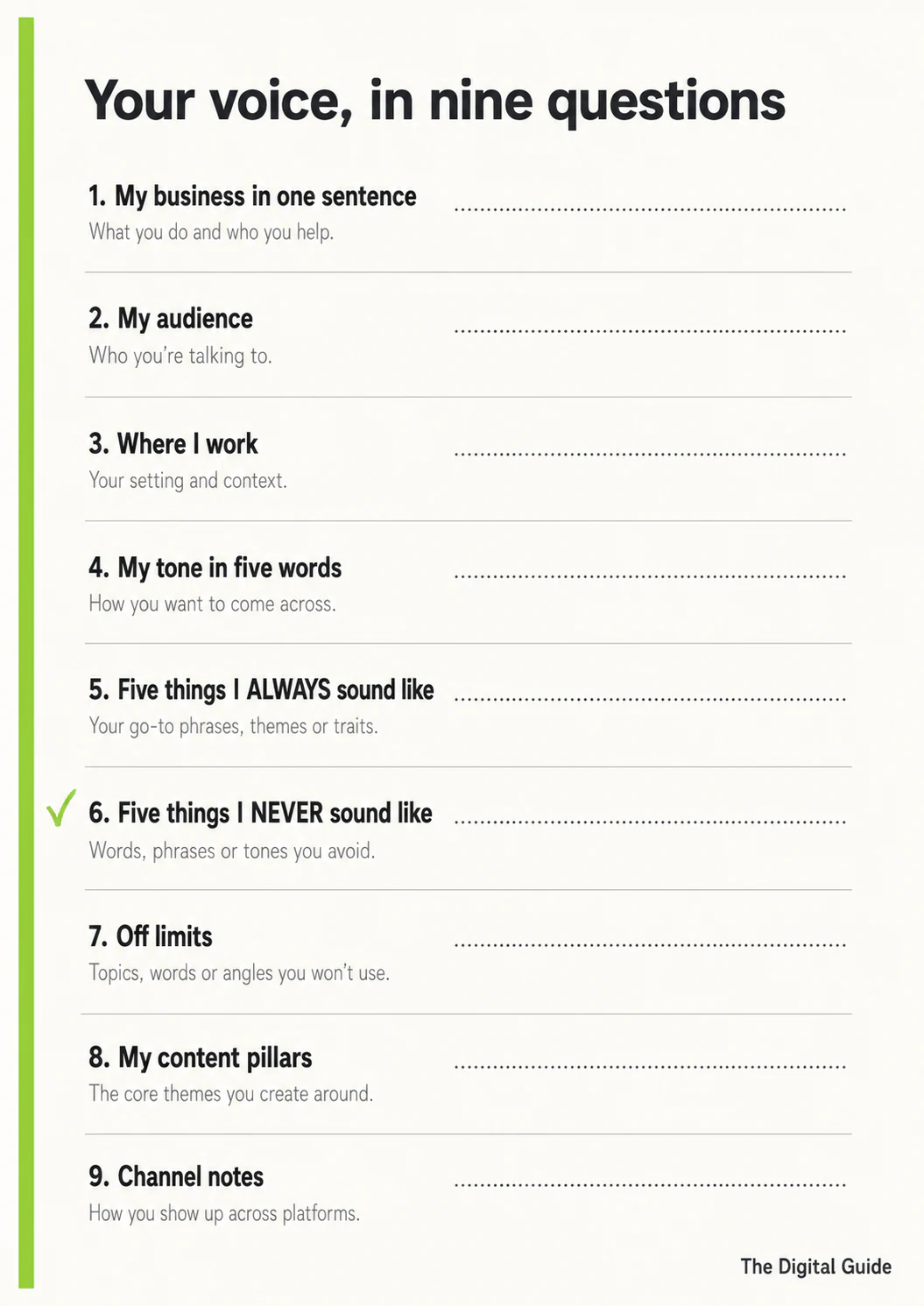
You can fill this in first, or just answer in the chat as the AI walks you through one question at a time. Same result either way. Having a rough answer ready makes the chat faster.
Be specific. This is where the setup lives or dies. “Professional and friendly” describes half the internet. The actual words and phrases only you use are what make it sound like you.
- My business in one sentence. What you do, for whom.
- My audience. Who you talk to. One or two types.
- Where I work. Your town or region. Or Australia-wide, or online.
- My tone in five words. For example: warm, direct, plain, dry humour, no fluff.
- Five things I ALWAYS sound like. Your tells, your turns of phrase.
- Five things I NEVER sound like. The cringe list. The words you would never use.
- Off limits. Topics, claims or angles you stay away from.
- My content pillars. The three or four things you post about.
- Channel notes. Anything specific per channel. For example: LinkedIn longer, Insta shorter.
The one that matters most
Question 6. The NEVER list. What you would never say is often more powerful than what you would, and most people skip it. Leave it out and the fluff creeps back in. Be ruthless. If “game-changer” makes you wince, write it down. Naming the words you hate stops the AI reaching for them.
The prompt that does the work
Here is the move. You do not write your own instructions from scratch. You paste one prompt, the AI interviews you one question at a time, then it writes the instructions block for you in your own words.
This is the master prompt. It works on every platform. The only thing that changes per tool is where you paste the block it hands back, and that is covered in each platform walkthrough below.
Answer in your own words. Short is fine. If the AI asks a follow-up to dig deeper, answer it. That is where the specific, useful detail lives.
Pick your platform
The block above works everywhere. Where you paste it, and what your particular tool calls that field, is the only thing that differs. Start with the tool you use most.
- Personalise ChatGPT so it sounds like you: presets, toggles and the Personalisation page. Saves as you go, no Save button.
- Personalise Claude so it sounds like you: one block into Instructions for Claude. Watch the Save button, it is easy to miss.
- Personalise Microsoft Copilot so it sounds like you: Custom instructions on a work or school account. Save instructions greys out until you change something.
- Personalise Google Gemini so it sounds like you: one block into Instructions for Gemini. Personal Google accounts only.
Test it in a fresh chat
Whichever tool you set up, test it the same way. Open a new chat and run this:
Read the output. It should sound like you, not generic AI. Here is the difference you are looking for.
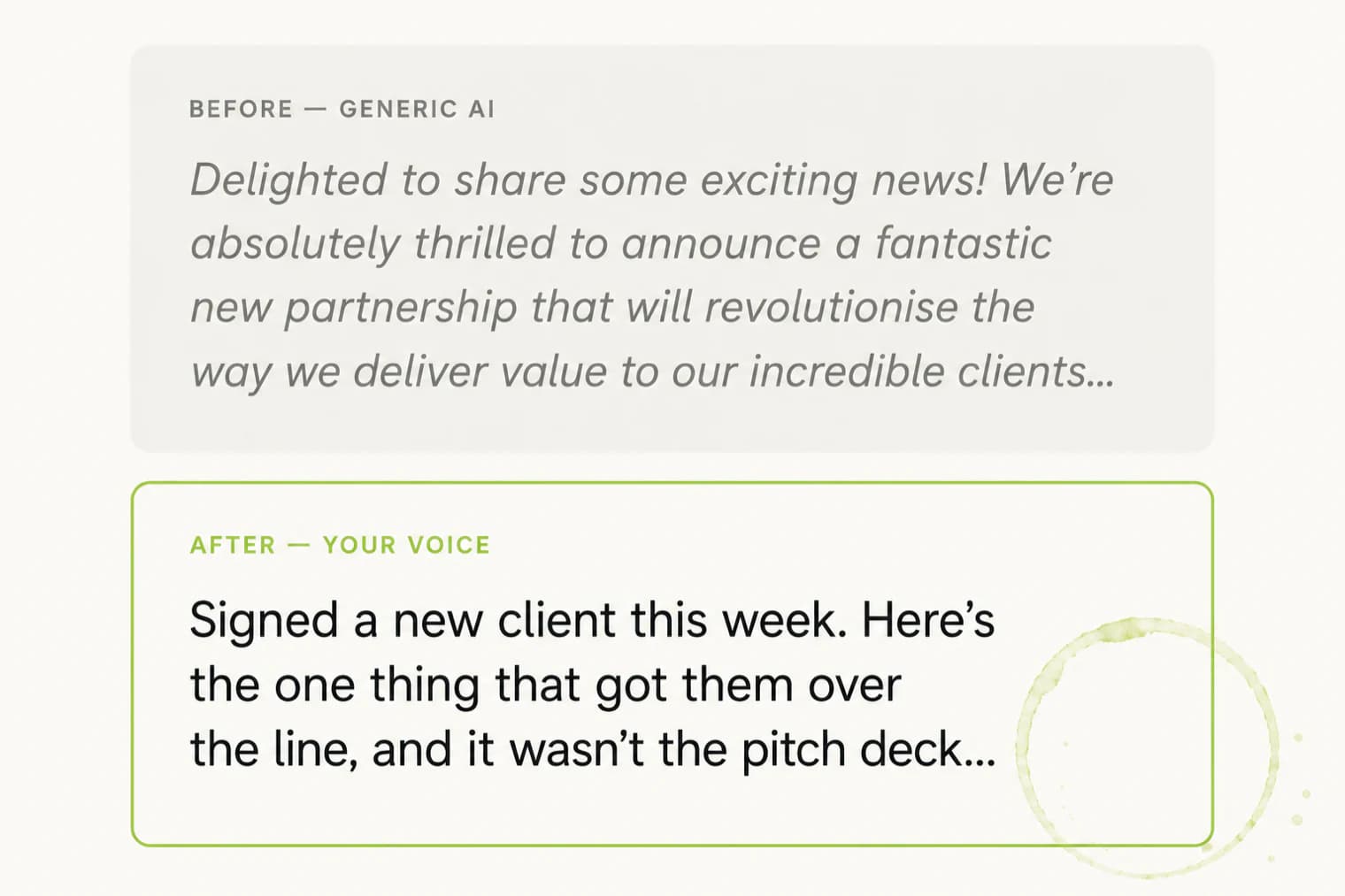
Before, generic AI: “Delighted to share some exciting news! We’re absolutely thrilled to announce a fantastic new partnership that will revolutionise the way we deliver value to our incredible clients...”
After, your voice: “Signed a new client this week. Here’s the one thing that got them over the line, and it wasn’t the pitch deck...”
If it still reads like the first one, your answers were probably too broad. Go back to your instructions and make them more specific. Add real words you use and real words you would never use. Tell it what not to do as much as what to do.
Common mistakes
The setup rarely fails outright. It just comes back bland. Almost always it traces back to one of these:
- Staying vague. “Professional and friendly” describes half the internet. Give the actual words only you use.
- Skipping the NEVER list. Half the power lives there. Leave it out and the fluff creeps back in.
- Describing an ideal, not yourself. Do not write the voice you wish you had. Write the one you actually use. That is the one people trust.
- Piling on tone words. Twenty adjectives cancel each other out. Five sharp ones do more work.
- Forgetting to save. The single most common one. No save, no change. Check it every time.
- Set and forget. Your voice moves. Your instructions should too. Revisit them when your business shifts.
Questions people ask
Do I need a paid plan to personalise my AI?
Mostly no. The custom-instructions field exists on the free tier of most tools. Copilot is the exception, it runs on a work or school Microsoft 365 account.
Will personalising my AI change my old chats?
No. Your instructions apply to new chats you start after you save. Existing conversations carry on as they were.
Can I have a separate voice for business and personal?
The instructions field is one shared voice across your chats. If you need a genuinely separate voice, most tools let you set up a project or workspace with its own instructions.
How often should I update my AI instructions?
Whenever your business, audience or voice shifts. A quick review every few months keeps it honest. It is a living tool, not set-and-forget.
Can my whole team share one AI voice?
The instructions field is set per person, on each account. For a shared team voice, hand everyone the same answers, or set it up inside a shared project where the tool supports one.
And if you want the bigger picture
Where does your whole business sit with AI?
Setting your voice is one tool doing one job well. Take the free AI Readiness check. Eight questions, two minutes, three pillar scores across Governance, Capability and Practical AI, and one thing to do on Monday morning. The full board-ready report follows by email.
Take the free AI Readiness check →Tracy Sheen CSP is the author of AI & U: Reimagine Business and The End of Technophobia, 2021 Business Book of the Year. Human-led. AI-leveraged. The Augmented Workforce.
Ada, my AI assistant, shaped the prompts and structure for this article.