Out of the box, ChatGPT sounds like everyone. Polished, generic, that flat press-release voice. This fixes it in one sitting. You answer nine questions about your business and how you talk, ChatGPT bakes it in, and every chat from then on starts already sounding like you.
About fifteen minutes. No brand guide, no homework.
This is the ChatGPT walkthrough. If you have not seen the full picture yet, start with the hub, how to make your AI sound like you, where the worksheet and the thinking behind the nine questions live. Already have your answers ready? Stay here.
Ada, my AI assistant, shaped the prompts for this guide. Human-led. AI-leveraged.
What makes ChatGPT different
ChatGPT gives you more dials than most tools, so the setup produces more than one block. When the interview finishes, it lays out six labelled sections that map to the different parts of the Personalisation page: a base style preset, some on/off toggles, your custom instructions block, plus nickname, occupation and a short “more about you” paragraph. You read a couple, paste the rest.
Before you start
Two things. ChatGPT open in your browser at chatgpt.com, logged in. And about fifteen minutes of quiet to answer honestly.
Step 1. Open a new chat
Go to chatgpt.com and log in. Start a new chat. The button is top-left.
Step 2. Paste this prompt and hit send
Copy the whole box, paste it into the chat, send it. ChatGPT starts asking questions.
I want to set up your Personalisation settings so you always sound like me and my
business. I do not have anything prepared. Interview me to get what you need.

Ask me ONE question at a time and wait for my answer before the next one. Keep each
question short and plain. No jargon. If an answer is thin, ask one quick follow-up,
then move on. Cover these, in order:

1. My business in one sentence (what I do, for whom)
2. My audience (who I talk to, one or two types)
3. Where I work (my town or region, or whether I work Australia-wide or online)
4. My tone in five words
5. Five things I ALWAYS sound like
6. Five things I NEVER sound like
7. Off limits. Topics or angles I never write about
8. My content pillars (the three or four things I post about)
9. Channel notes (anything per channel, for example LinkedIn longer, Insta shorter)

When you have all nine answers, stop interviewing and lay out everything I need for
ChatGPT's Personalisation settings, in SIX labelled sections, in this order:

SECTION 1 - BASE STYLE AND TONE. Pick ONE preset from this list: Default,
Professional, Friendly, Candid, Quirky, Efficient or Cynical. Choose the one that best
matches my tone words. One sentence on why.

SECTION 2 - CHARACTERISTICS TOGGLES. For each toggle, tell me ON or OFF with one
sentence why: Warm, Enthusiastic, Headers and Lists, Emoji, Fast answers.

SECTION 3 - CUSTOM INSTRUCTIONS. A copy-ready block in my own words: ALWAYS sound like
this (list), NEVER sound like this (list), OFF LIMITS, CHANNEL NOTES.

SECTION 4 - NICKNAME. My first name.

SECTION 5 - OCCUPATION. My business in one sentence.

SECTION 6 - MORE ABOUT YOU. A short paragraph (about 60 words) combining my audience,
where I work and my content pillars.

Use my exact words. Do not soften my voice. Label each section clearly so I can copy
them one at a time.
Step 3. Answer the questions
ChatGPT asks one at a time. Answer in your own words, short is fine. If you filled in the worksheet from the hub, read your answers straight across. When you have answered all nine, ChatGPT lays out the six sections. Leave the chat open, you will copy from it in a moment.
Step 4. Open Personalisation
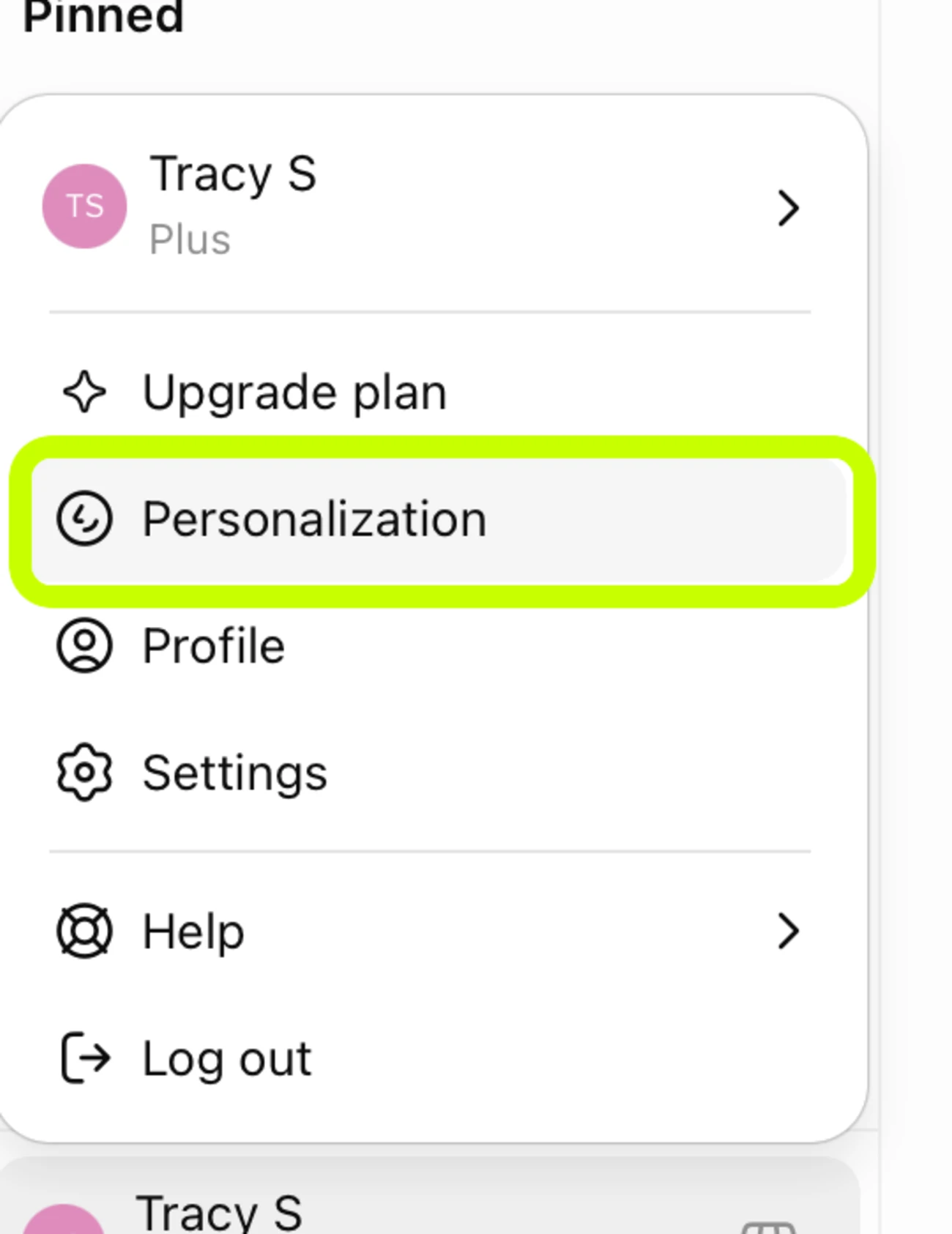
Click your account picture or initials in the bottom-left corner, then click Personalisation. It sits in that menu as its own item, just above Settings.
Step 5. Fill in every field from the chat
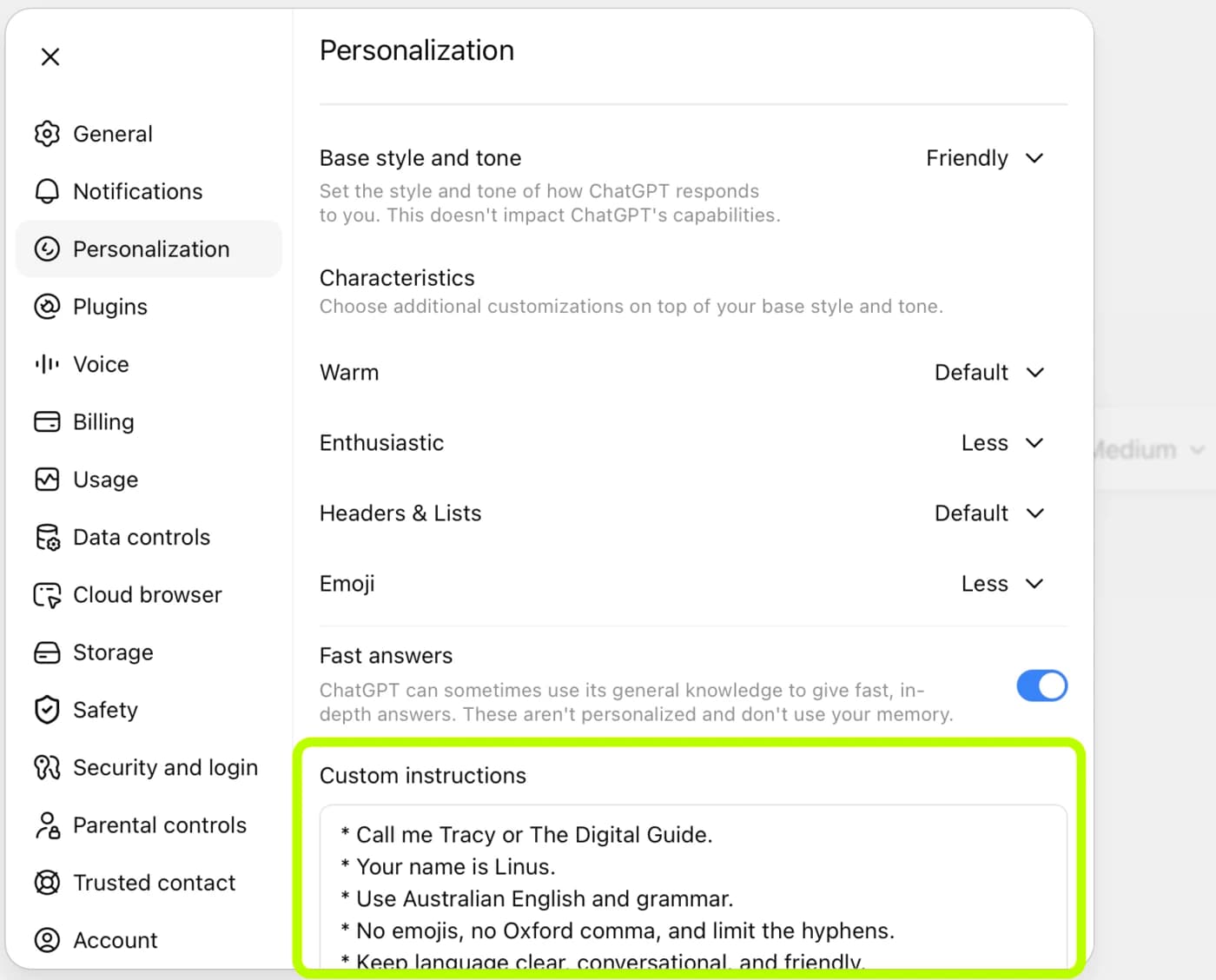
Work down the Personalisation page and match each field to a section from the chat:
- Base style and tone: pick the preset shown in Section 1.
- Characteristics toggles: set each as Section 2 recommends. Read the why if you are not sure.
- Custom Instructions: copy the whole Section 3 block, paste it in.
- Nickname: copy the name in Section 4, paste it in.
- Occupation: copy the sentence in Section 5, paste it in.
- More about you: copy the paragraph in Section 6, paste it in.
Sections 1 and 2 are recommendations to read and apply. Sections 3 to 6 paste straight in.
Step 6. Save and test
ChatGPT saves Personalisation as you go. There is no Save button. Once every field is filled in, close the Settings window.
Open a new chat and run the test prompt:
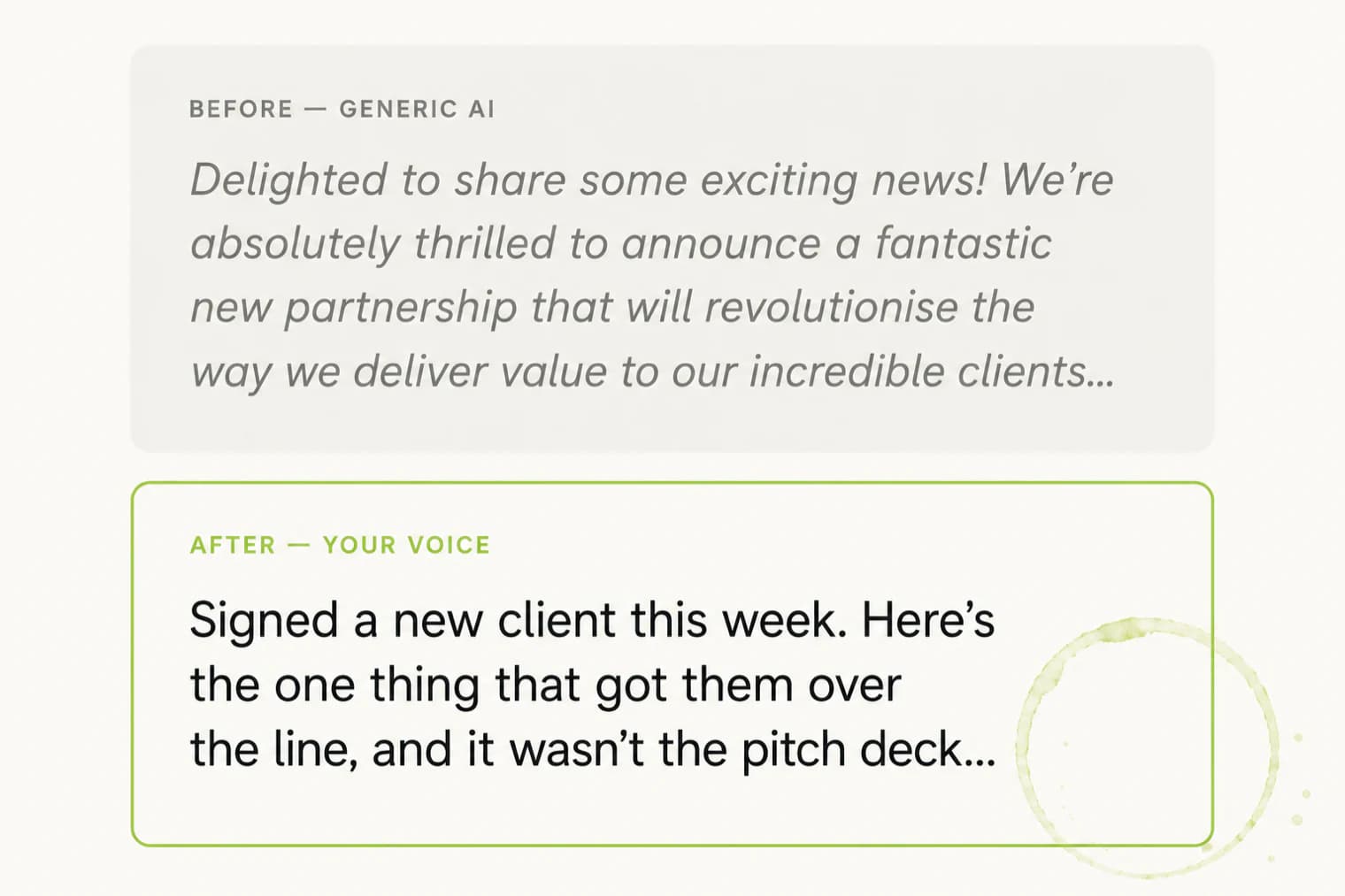
It should sound like you, not generic AI. Here is the gap you are checking for.
Before, generic ChatGPT: “Delighted to share some exciting news! We’re absolutely thrilled to announce a fantastic new partnership...”
After, your ChatGPT: “Signed a new client this week. Here’s the one thing that got them over the line, and it wasn’t the pitch deck...”
If something does not work
- It asked everything at once. Reply with: ask me one question at a time and wait for my answer. It resets.
- The output sounds nothing like me. Your answers were probably too broad. Make Section 3 more specific. Add real words you use and real words you would never use.
- Output is too long or too formal. Add to Custom Instructions: keep responses short, two paragraphs maximum unless I ask for more, plain Australian English, no corporate jargon.
- It uses words I hate. Add a banned-words line to Custom Instructions: never use these words, then your list.
- It adds emojis when I said no. Check the Emoji toggle is OFF. Then add to Custom Instructions: no emojis, ever. The toggle can override your text, so set both.
Questions people ask
Is ChatGPT personalisation free?
Yes. The Personalisation page, including Custom Instructions, is available on the free plan. Open Settings and look for Personalisation. If you can see it, you can use this.
What is the difference between Custom Instructions and the toggles?
The toggles (Warm, Emoji, Fast answers and so on) are quick global switches. Custom Instructions is the free-text field where your actual voice lives, your ALWAYS list, your NEVER list, your channel notes. The toggles can override your text, so set them to match. Do not let the Emoji toggle fight a no-emojis instruction.
Will this change my old chats?
No. Personalisation applies to new chats you start. Existing conversations carry on as they were.
My changes will not stick, what am I doing wrong?
ChatGPT saves automatically, there is no Save button, so that is rarely the issue. If the voice is not landing, the fix is almost always making the Custom Instructions block more specific rather than anything to do with saving.
Want the bigger picture?
Where does your whole business sit with AI?
Your voice is one tool doing one job well. To see where your whole business sits with AI, take the free AI Readiness check. Eight questions, two minutes, three pillar scores, one thing to do on Monday morning.
Take the free AI Readiness check →Tracy Sheen CSP is the author of AI & U: Reimagine Business and The End of Technophobia, 2021 Business Book of the Year. Human-led. AI-leveraged. The Augmented Workforce.
Ada, my AI assistant, shaped the prompts and structure for this article.